Task Item Details
TaskItemDetails is a built-in component of Portal which contains role, user, task, case, and time information that users can interact with. To show the needed task information, configure the TaskItemDetails component via the Portal variable rather than overriding concepts.
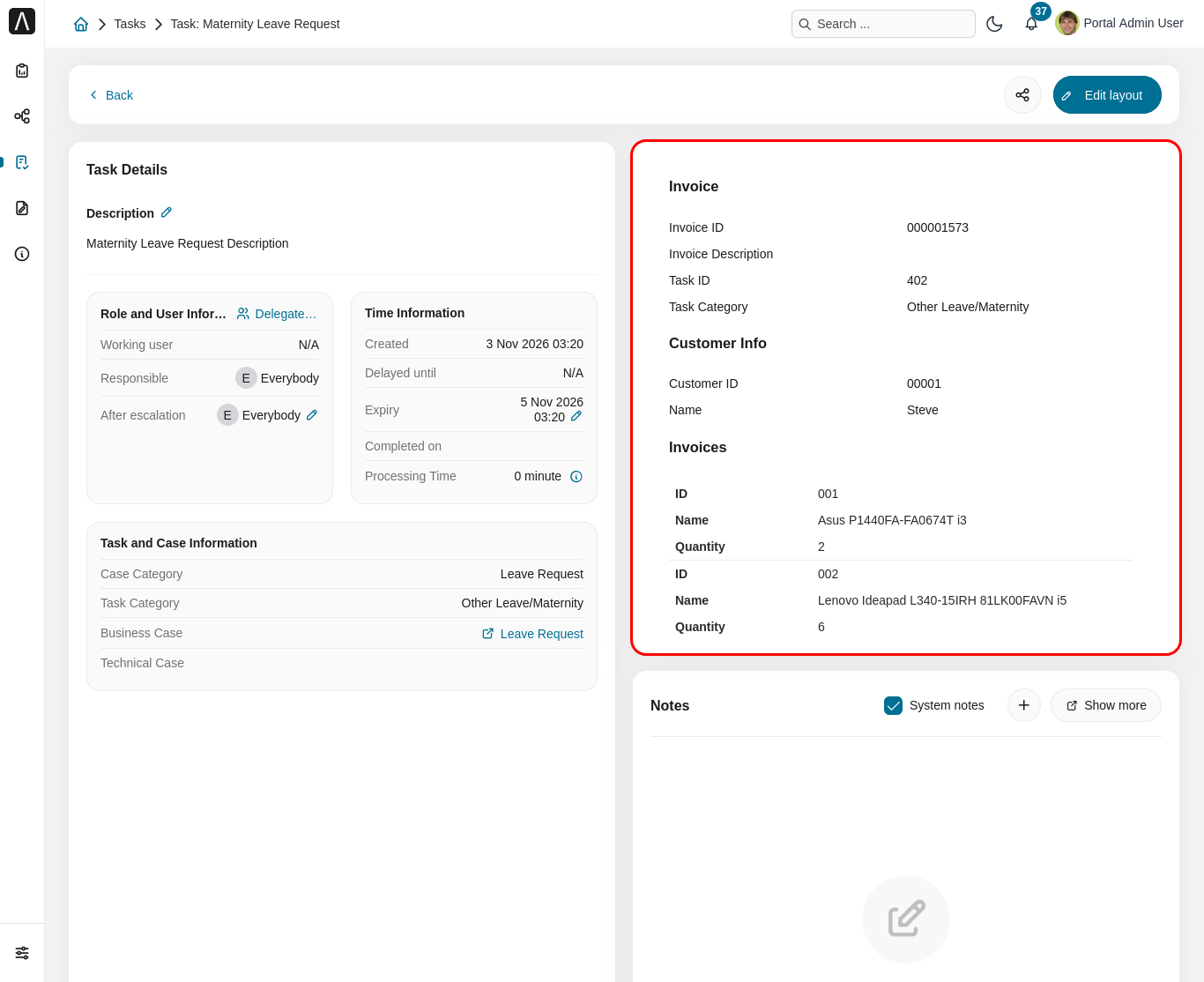
Each TaskItemDetails contains
Summary
1Data and Description
2Documents
3Histories
4Custom panels (widgets)
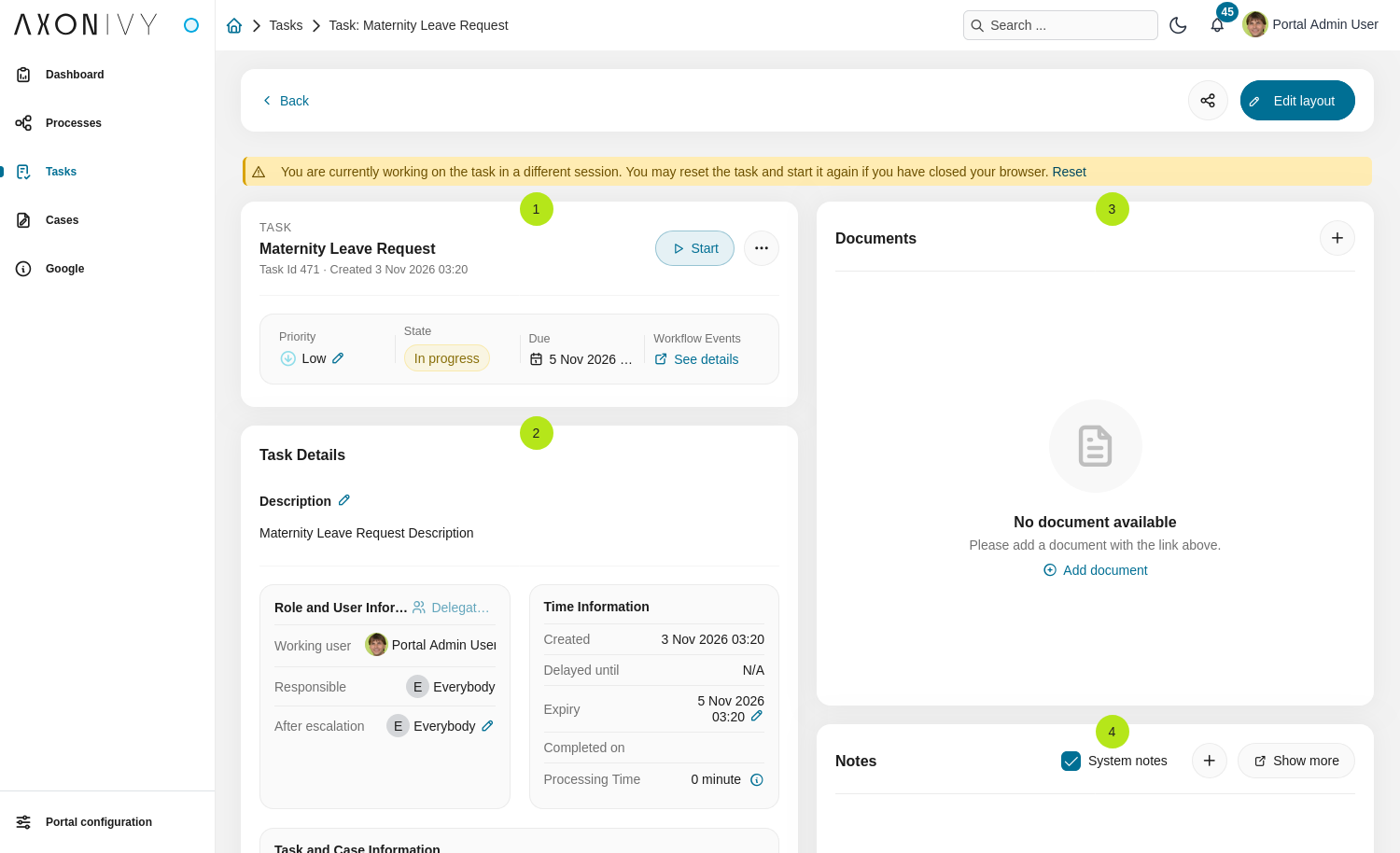
Important
All visible widgets will be configured in Variable Portal.TaskDetails.
How to configure widgets in task details
Settings of all visible widgets on task details page are saved in variable Portal.TaskDetails.
Cockpit Administrator can configure widgets via variable Portal.TaskDetails on Cockpit settings page.
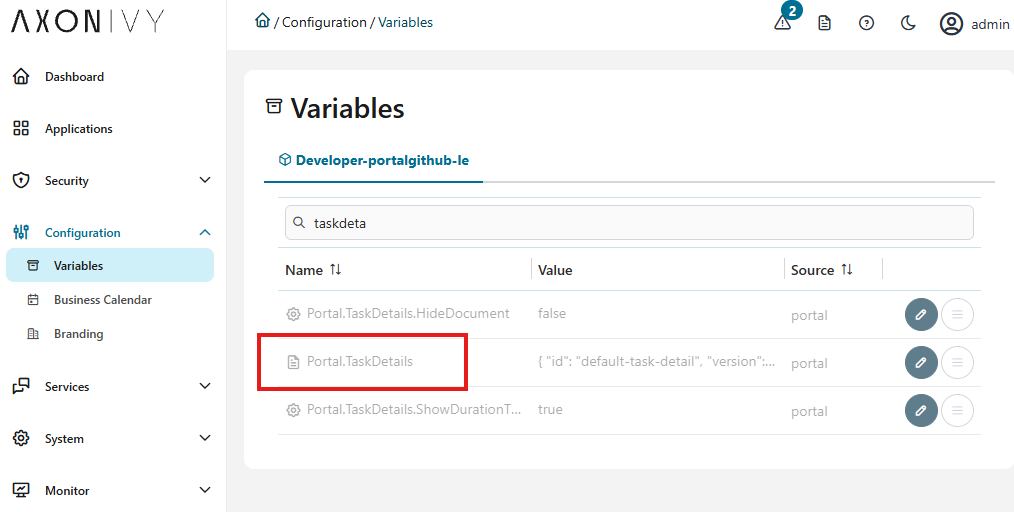
The variable’s value is a wrapper object:
versionidentifies the format of the JSON collection itself, anditemsholds the list of task detail layouts. This wrapper-levelversionis what Portal reads (and migrates) on import - individual layouts do not carry their ownversionfield.
Important
How Portal picks which layout to display - this determines whether a change to this variable has any visible effect at all:
If the current user has ever clicked Edit Layout on this page and saved (or was previously in edit mode when a save was triggered), Portal uses that user’s own saved layout and ignores this variable entirely for that user, indefinitely. The Reset button on this page does not clear this saved layout - it only discards unsaved changes made during the current edit session. There is currently no supported way to clear a user’s saved layout from the UI. If a change to this variable appears to have no effect, check first whether the user you are testing with has ever saved a layout edit on this page.
Otherwise, Portal scans the
itemslist for an entry whosefiltersmatch the current task (bycategoriesorstates) and uses the first match.If no entry’s
filtersmatch, Portal falls back to the entry whoseidis exactly"default-task-detail"(case-sensitive). An entry with any other ``id`` and no matching ``filters`` will never be displayed - this is a common mistake when adapting the examples below.If no entry has that exact
ideither, Portal falls back to its own built-in default layout (the 4-widget layout shown below), silently ignoring everything you configured.
Default configuration includes 4 widgets.
{
  "version": "14.0.0",
  "items": [
   {
      "id": "default-task-detail",
      "filters": {
         "categories" : ["support"],
         "states" : ["DONE", "OPEN"]
      },
      "widgets":
      [
         {
            "id": "summary",
            "type": "summary",
            "layout": {
               "x": 0, "y": 0, "w": 6, "h": 12
            }
         },
         {
            "id": "information",
            "type": "information",
            "layout": {
               "x": 0, "y": 12, "w": 6, "h": 18
            }
         },
         {
            "id": "history",
            "type": "history",
            "layout": {
               "x": 6, "y": 30, "w": 6, "h": 30
            }
         },
         {
            "id": "document",
            "type": "document",
            "layout": {
               "x": 6, "y": 0, "w": 6, "h": 30
            }
         },
         {
            "id": "custom",
            "type": "custom",
            "layout": {
               "x": 0, "y": 30, "w": 6, "h": 30
            },
            "data" : {
               "processPath": "Start Processes/TaskDetailsCustomWidgetExample/invoiceDetails.ivp",
               "params": {
                  "startedTaskId": "task.id",
                  "startedTaskCategory": "task.category",
                  "invoiceId": "000001573",
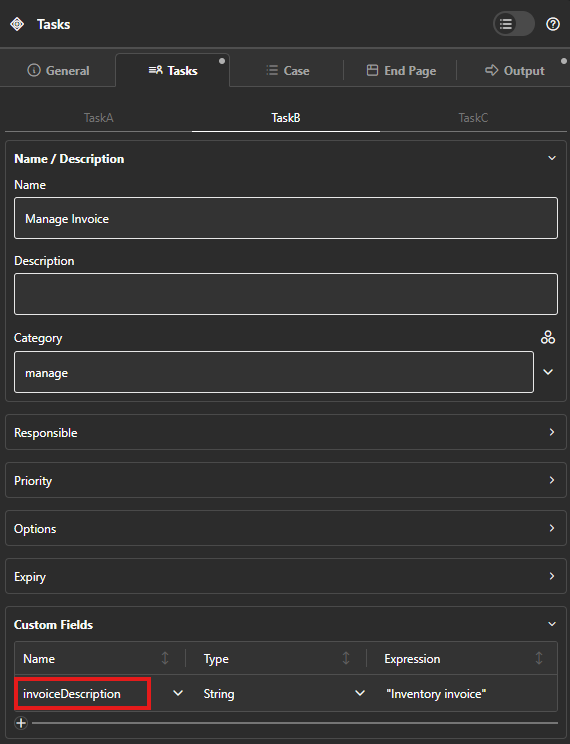
                  "invoiceDescription": "task.customFields.invoiceDescription"
               }
            }
         }
      ]
   }
]
}
Structure of each task details layout in variable Portal.TaskDetails:
id: ID which used to identify layout.widgets: definition of widgets in layout.filters: conditions to determine which tasks can use the layout. There are 2 filter types:categories(task categories) andstates(task business states).Structure of each widget inside task details layout in variable Portal.TaskDetails:
type: Supported values:summary,information,document,history,customx: column index. HTML DOM Styleleftwill be calculated by formulax / 12 * 100%y: row index. HTML DOM Styletopwill be calculated by formulay * 20pxw: width in columns. HTML DOM Stylewidthwill be calculated by formulaw / 12 * 100%h: height in rows. HTML DOM Styleheightwill be calculated by formulah * 20pxThe grid is 12 columns wide and one row is 20 pixels high. Each widget is then inset by 10 pixels on every side, so two neighbours end up 20 pixels apart.
styleClass(optional): add CSS Classes to HTML DOMstyle(optional): add inline style to HTML DOM (avoid inline styles when possible).data(for custom widget): data for custom widget using iframetype: type of custom widget which is not using IFrame. Supported values:taskItemDetailCustomPanelTopandtaskItemDetailCustomPanelBottom.url: URL for external websiteprocessPath: the user-friendly request path of the Ivy process which will be displayed in the custom widgetparams: parameters for the Ivy process above, each parameter can be defined as follows:Key name that will be parameter name for the Ivy process above. Note: don’t use
taskId.Key value for task has to start with
task.. Supported are two values:task.id,task.category.Key value for task custom fields have to start with
task.customFields., follow by the custom field name.Other key values will be treated as hard coded values.
Important
Do not change
typeof widgets. You can changex,y,wandhto update size and position of widgets.x,y,wandhmust be integers.x + wmust not be larger than 12.For data of custom widget, if you input
processPath, don’t inputurl. You can only use one of them.We support all task business states for filter type
states. Please refer to Task Business States to check for available task business states.The
summarywidget contains the Start button, task actions, priority, state and due date. Add it to your layouts when upgrading to 14.0.0.
Show Custom Panels (Widgets)
Tip
To quickly understand how the JSON of custom task details looks like.
Refer to
variables.Portal.TaskDetails.jsonfile inportal-developer-examples/resources/filesproject.Copy to the corresponding application folder located in the engine.
E.g., <engine>/configuration/applications/<application>
Create some destroyed task or start the process
Start Processes/TaskDetailsCustomWidgetExample/SalesManagement.ivpinportal-developer-examplesproject.Go to the example homepage by the process
Start Processes/ExamplePortalStart/DefaultApplicationHomePage.ivpLastly, go to task details to check the new custom layout.
About how to configure Variables, refer to Axon Ivy Variables
There are two steps for adding new custom panels.
The Engine administrator has to configure variable Portal.TaskDetails on Cockpit Page to add custom widgets.
Example Portal.TaskDetails with layout configuration includes 4 custom widgets:
{
  "version": "14.0.0",
  "items": [
   {
      "id": "default-task-detail",
      "widgets":
         [
            {
               "type": "summary",
               "layout": {
                  "x": 0, "y": 20, "w": 6, "h": 12
               }
            },
            {
               "type": "information",
               "layout": {
                  "x": 0, "y": 32, "w": 6, "h": 48
               }
            },
            {
               "type": "document",
               "layout": {
                  "x": 6, "y": 20, "w": 6, "h": 30
               }
            },
            {
               "type": "history",
               "layout": {
                  "x": 6, "y": 50, "w": 6, "h": 30
               }
            },
            {
               "type": "custom",
               "layout": {
                  "x": 0, "y": 0, "w": 12, "h": 20
               },
               "data" : {
                  "type": "taskItemDetailCustomPanelTop"
               }
            },
            {
               "type": "custom",
               "layout": {
                  "x": 0, "y": 80, "w": 6, "h": 20
               },
               "data" : {
                  "type": "taskItemDetailCustomPanelBottom"
               }
            }
         ]
      }
  ]
To customize task details using an IFrame, please make sure
Must input parameter
urlif you want to use external URL.Must input parameter
ivyif you want to start an Ivy process.If you usestart process, you can predefine parameter for
params.Customized task details using external URL
{
  "version": "14.0.0",
  "items": [
   {
      "id": "default-task-detail",
      "widgets": [
         {
            "type": "summary",
            "layout": {
            "x": 0, "y": 0, "w": 4, "h": 12
            }
         },
         {
            "type": "information",
            "layout": {
            "x": 0, "y": 12, "w": 4, "h": 48
            }
         },
         {
            "type": "custom",
            "layout": {
            "x": 6, "y": 0, "w": 8, "h": 30
            },
            "data" : {
            "url": "https://www.lucide.dev/"
            }
         }
      ]
   }
]
}
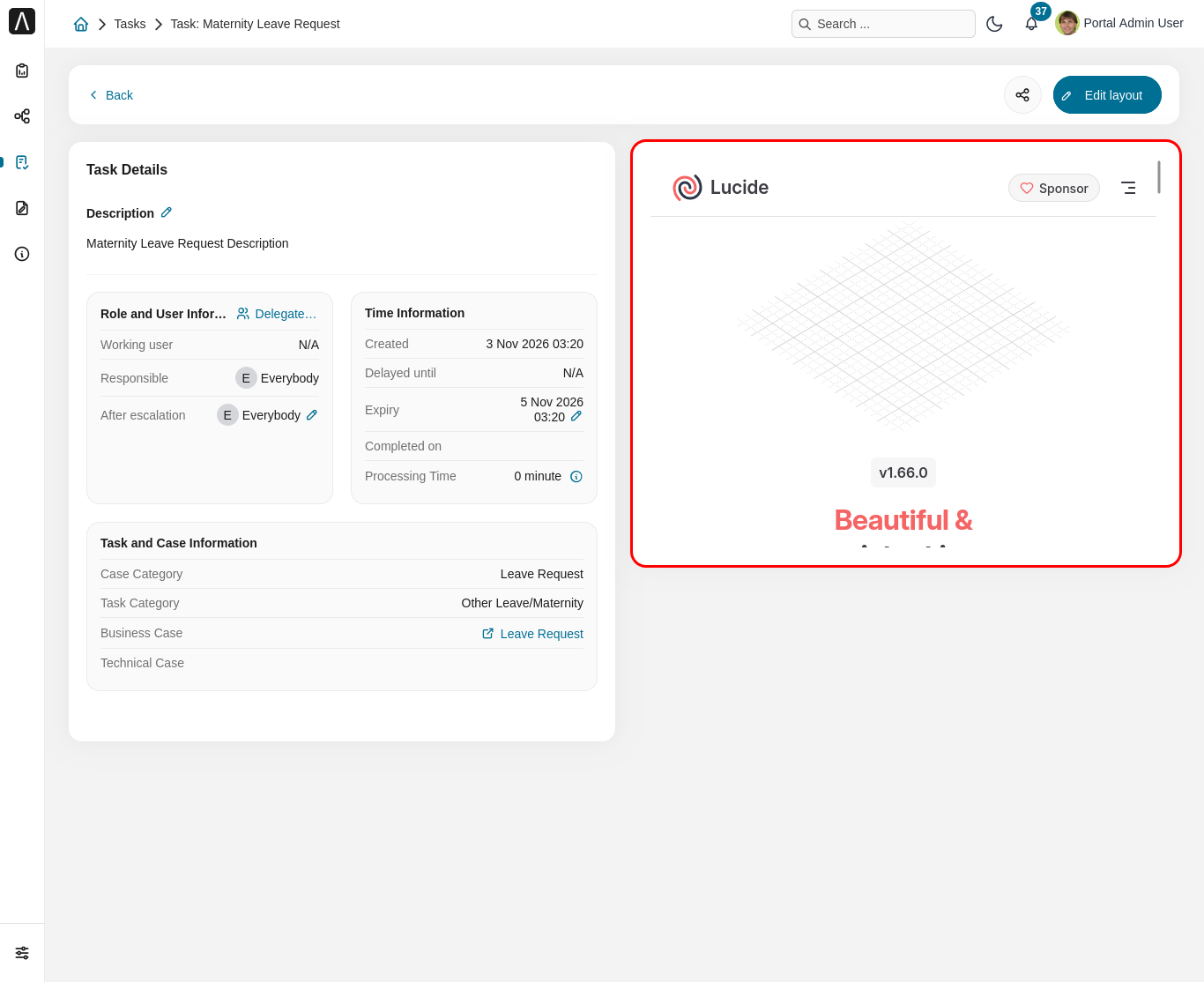
Result
Customized task details using a process start, please refer to
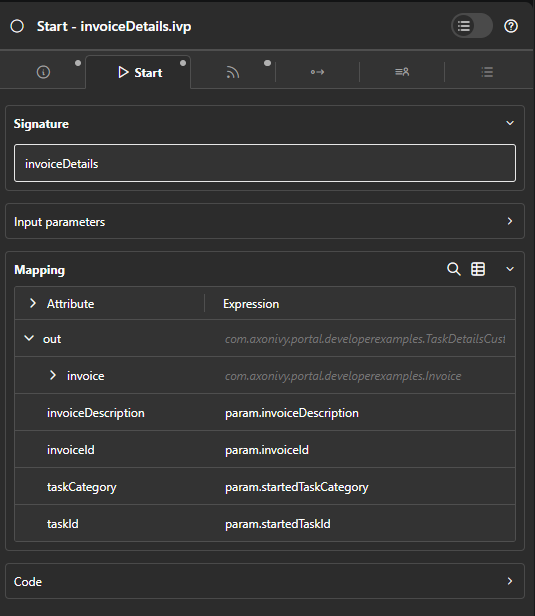
TaskDetailsCustomWidgetExampleinportal-developer-examplesfor details.{ "version": "14.0.0", "items": [ { "id": "default-task-detail", "widgets": [ { "type": "summary", "layout": { "x": 0, "y": 0, "w": 6, "h": 12 } }, { "type": "information", "layout": { "x": 0, "y": 12, "w": 6, "h": 48 } }, { "type": "history", "layout": { "x": 6, "y": 30, "w": 6, "h": 30 } }, { "type": "custom", "layout": { "x": 0, "y": 30, "w": 6, "h": 30 }, "data" : { "processPath": "Start Processes/TaskDetailsCustomWidgetExample/invoiceDetails.ivp", "params": { "startedTaskId": "task.id", "startedTaskCategory": "task.category", "invoiceId": "000001573", "invoiceDescription": "task.customFields.invoiceDescription" } } } ] } ] }
Provide task custom field
Map parameters to process data
Result