Accessibility
Important
To enable/disable keyboard shortcuts, go to My Profile > Accessibility settings. See Accessibility settings for details.
Keyboard Shortcuts Quick Reference
Shortcut |
Action |
|---|---|
General |
|
Tab |
Show the Skip to content link (first key on a page) |
Enter |
Jump to the main content (on the Skip to content link) |
Esc |
Close the open menu, panel or dialog; focus goes back |
Tab / Shift + Tab |
Move between the items of the open user menu |
Navigation |
|
Alt + 1 |
Focus Dashboard in the sidebar |
Alt + 2 |
Focus Processes in the sidebar |
Alt + 3 |
Focus Tasks in the sidebar |
Alt + 4 |
Focus Cases in the sidebar |
Alt + 5 |
Focus global search |
Alt + 6 |
Focus user menu profile |
Alt + 7 |
Collapse or expand the sidebar |
Tab |
Cycle through dashboard items (when on Dashboard) |
Widget Focus |
|
Alt + W |
Focus Start button of the next task |
Alt + Q |
Focus actions menu of the next case |
Alt + A |
Focus next process |
Action Menu (task, case, document and widget menus) |
|
Enter / Space |
Open context menu (when focused on task/case/document) |
Arrow Down / Up |
Move to the next / previous menu item |
Home / End |
Move to the first / last menu item |
Enter / Space |
Run the focused menu item |
Esc / Tab |
Close context menu and return to its actions button |
Note
Browser compatibility: Chrome, Firefox, and Edge.
Keyboard layouts: European, Asian, and American keyboards.
macOS users: Replace Alt with Option key.
Why is Accessibility Important?
In today’s digital landscape, ensuring that front-end UIs are accessible to all users is not just a nice-to-have — it’s essential. At Axon Ivy, we recognize the importance of making our portal available to everyone, regardless of their abilities or disabilities. With this in mind, we’ve put significant thought into enhancing the accessibility features within the Axon Ivy Portal. This is only the beginning, and we are committed to continually improving these features. To ensure the highest quality, we have used tools such as the Microsoft Lighthouse Accessibility Checker and adhered to the guidelines of the WCAG 2.1 Level AA standard to evaluate and refine our UI.
Accessibility Approach in the Axon Ivy Portal
We have taken a comprehensive approach to accessibility, addressing the most crucial aspects to create a more inclusive experience. Below are the key areas where we have evaluated and implemented improvements.
Contrast
The contrast between text, buttons, and background elements is vital for users with visual impairments. We have optimized the UI for both Dark Mode and Light Mode in line with the WCAG 2.1 Level AA contrast ratios. This ensures that all components — buttons, widgets, and backgrounds — meet the necessary contrast thresholds to enhance visibility and readability.
Zoom Capabilities
We have revamped the zoom functionalities for both desktop and mobile versions of the portal. Users can now easily zoom in and out while maintaining the clarity and usability of the UI, ensuring accessibility for users who require larger text and images to interact comfortably with the portal.
Keyboard Navigation
We have introduced keyboard shortcuts to streamline the user experience, enabling users to quickly navigate between main sections and interact with widgets without needing a mouse.
Skip to Content
The first Tab on a page shows the Skip to content link. Press Enter to move focus to the main content and skip the header and the sidebar.
Accessing Context Menus
Once focused on a task or case:
Press Tab to move focus to the actions column
Press Enter to open the context menu
Press Arrow Down / Arrow Up to navigate through menu items (Home / End jump to the first / last item)
Press Enter or Space to run the focused menu item
Press Esc or Tab to close the menu; focus returns to the actions button
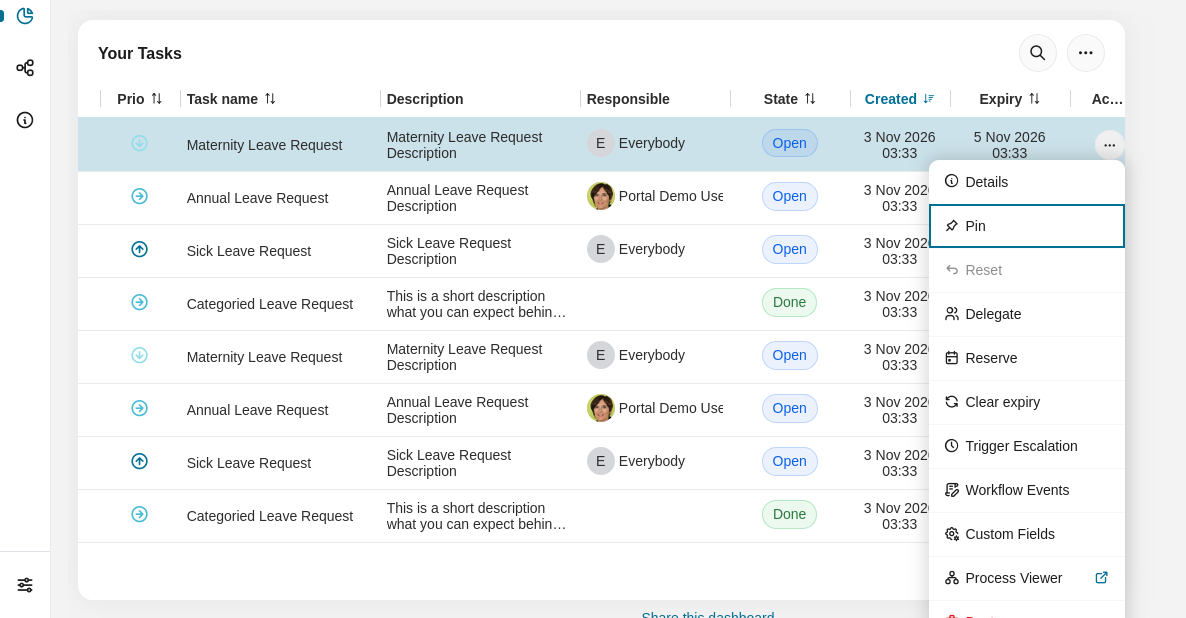
Example: Task Navigation
To work with a specific task:
Press Alt + W repeatedly until you reach the desired task
Press Tab then Enter to open its context menu
Press Arrow Down / Arrow Up to navigate menu options
Press Esc to close the menu
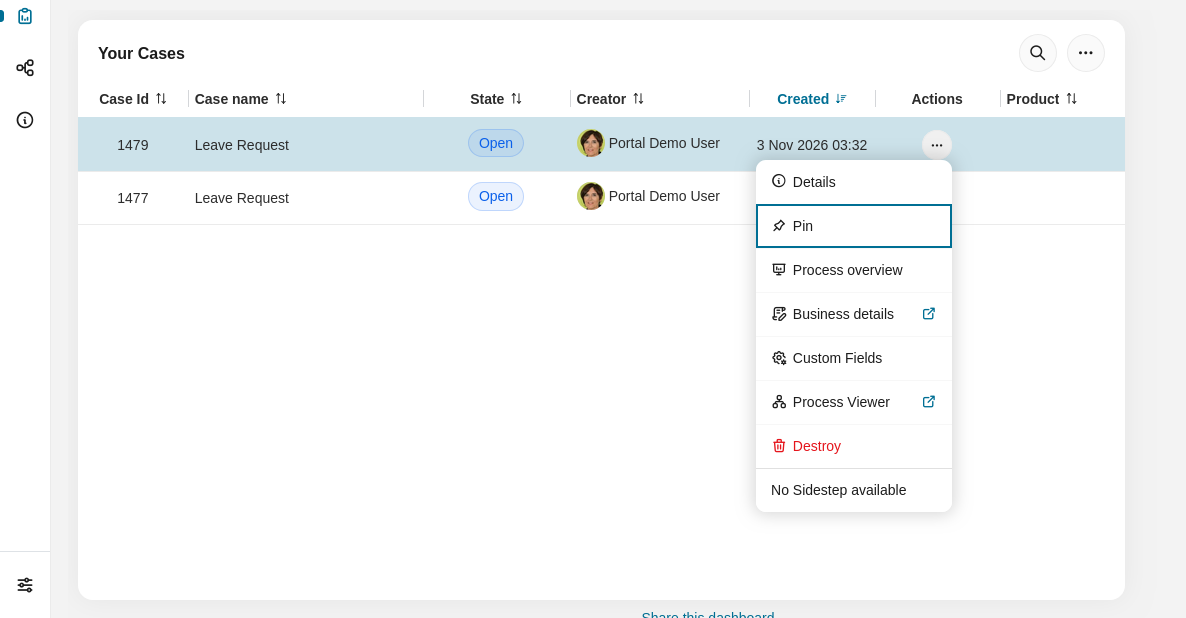
Example: Case Navigation
To work with a specific case:
Press Alt + Q repeatedly until you reach the desired case
Press Enter to open its context menu
Press Arrow Down / Arrow Up to navigate menu options
Press Esc to close the menu
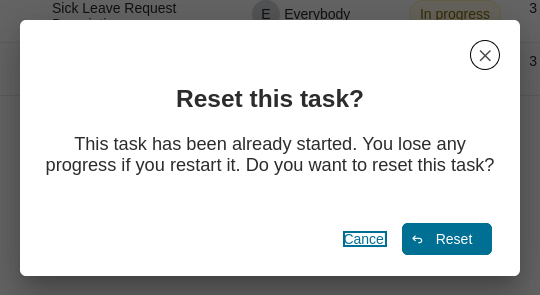
You can also navigate to special dialogs like the reset task confirmation:
Extended Descriptive Elements in the Task and Case List
To improve navigation and accessibility in the portal, we have not only implemented shortcuts for quick access to processes, tasks, and cases, but also added more descriptive elements to the widgets. These enhancements provide a clearer and more detailed display of key information, ensuring optimal support for screen readers.
Screen Reader Support
Important
Activating Microsoft Narrator: Press Ctrl + Windows key + Enter
We rely on Microsoft Narrator to support screen readers, ensuring that users with visual impairments can easily navigate through the portal and understand the information provided.
Note
The portal automatically sets the page language based on your user preferences, allowing the screen reader to read content in your preferred language.
Descriptive Elements in the Task Widget
When you focus on the Start button of a task, the screen reader announces the columns which are displayed in the widget. Each column is read as “column header: value”, in the same order as in the widget, and the Start column is read as “Task start”.
For example, a Task widget which displays the columns Task name, Responsible, State, Expiry and Start announces:
“Task name: <task name> - Responsible: <responsible> - State: <state> - Expiry: <expiry> - Task start”
Columns which you do not display are not announced, and a column without a value, e.g. a task without an expiry date, is skipped.
Descriptive Elements in the Case Widget
When you focus on the actions menu of a case, the screen reader announces the displayed columns of the case in the same way.
For example, a Case widget which displays the columns Case Id, Case name, State, Creator and Created announces:
“Case Id: <case id> - Case name: <case name> - State: <state> - Creator: <creator> - Created: <created date>”
Note
The announced texts follow the column headers of the widget. If you add, remove or rename a column in the column management dialog, the screen reader announces the row accordingly.
Accessibility Dashboard Templates
To further enhance usability, we have created an Accessibility Dashboard that simplifies navigation for users with disabilities. This dashboard features a dedicated Shortcuts Widget that displays available shortcuts. When the dashboard opens, this widget is automatically focused and read aloud by the screen reader.
Tip
Each time you access the Accessibility Dashboard, the shortcuts are announced automatically, providing an instant reference.
Integrating the Accessibility Dashboard
You can easily integrate this feature by selecting the Accessibility template when creating a dashboard.
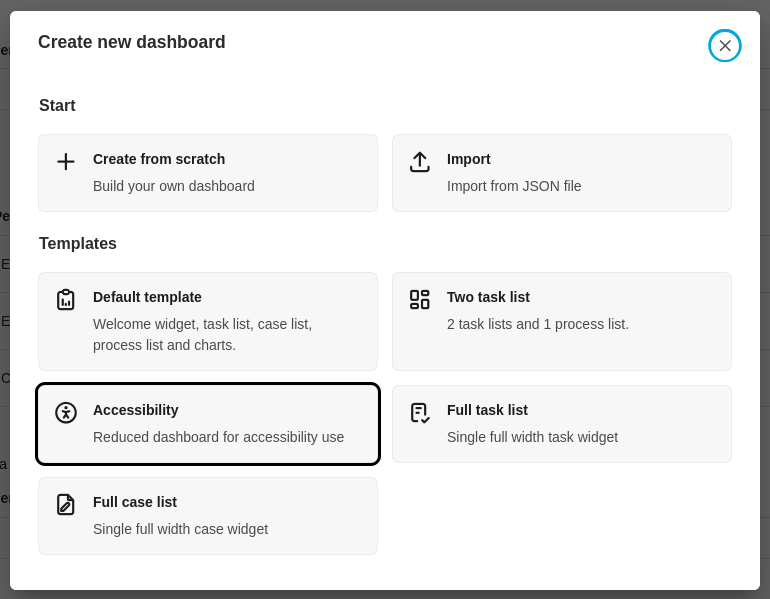
The dashboard contains the following pre-configured widgets:
Shortcuts Widget: Displays and announces available shortcuts via screen reader
Process List Widget: Shows ongoing processes
Task List Widget: Shows your tasks
Case List Widget: Manages cases
Note
These widgets are optimized for use with accessibility features and screen readers.
Adding the Shortcut Widget to any Dashboard
The Shortcut Widget can also be integrated into any other dashboard.
Follow these steps:
Create a custom dashboard widget
Select the widget type: “Custom Dashboard Widget”
Choose the Accessibility Shortcut Widget
Add it to the screen
Tip
Add the Shortcuts Widget to your main dashboard for quick reference without switching views.